Remote Support
Follow these 5 simple steps to enable us to provide you with fast and secure remote support.
Click here to download TeamViewer
5 steps
1
Download: Click the red button to start downloading the TeamViewer program.
2
Find the file: Check the "Downloads" folder for the TeamViewerQS.exe file.
3
Open the file: double-click on the downloaded file to launch it.
4
Provide your ID and password: give softCodex support the information that appears in the TeamViewer window.
5
Close the support window: Once the session is complete, simply close TeamViewer to end the connection.
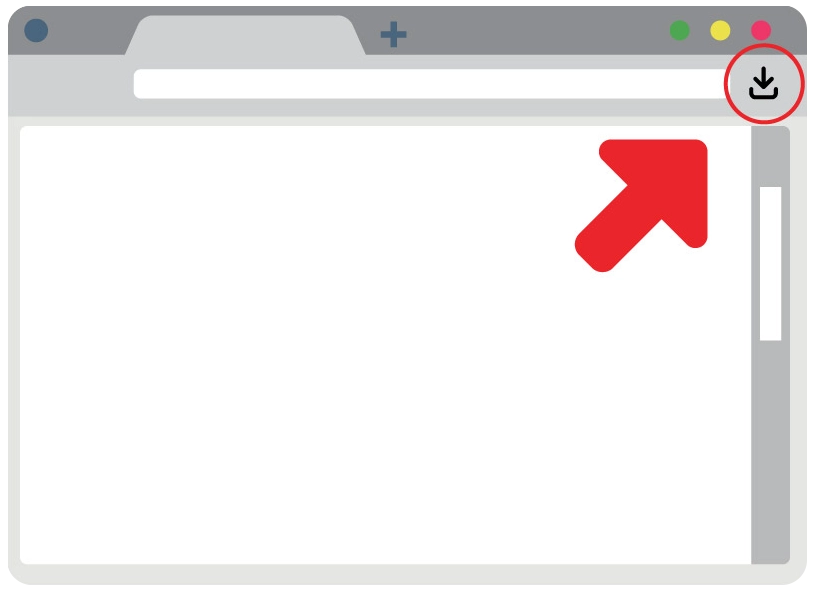
The download icon may be located at the top right of the browser.